
Most advice about Shopify theme speed is a checklist: compress images, remove apps, pick a light theme. That advice is fine, but it never answers the question a store owner actually has, which is whether the theme is the problem at all. Shopify publishes the answer for 100 popular themes, measured on real stores with real shoppers, and almost nobody reads it. This page does, and then shows you how to test your own store the same way.
What “Theme Speed” Means on Shopify Today
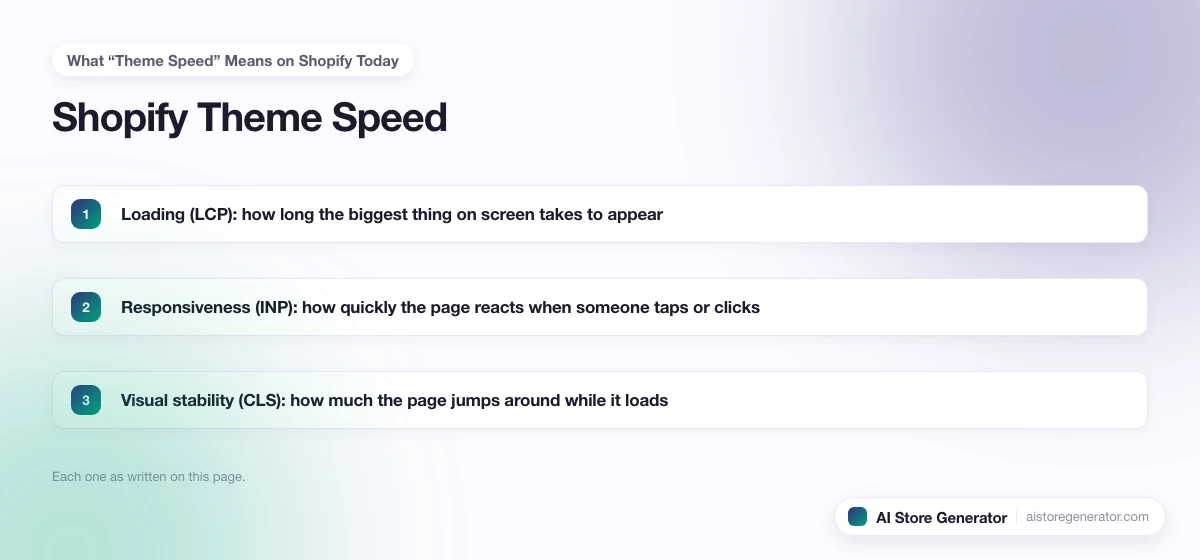
Shopify no longer gives your store a single speed score. Instead, it grades three measurements from Google’s Core Web Vitals, using data from people who actually visit your store:
- Loading (LCP): how long the biggest thing on screen takes to appear. Good is 2.5 seconds or less; poor is over 4 seconds.
- Responsiveness (INP): how quickly the page reacts when someone taps or clicks. Good is 200 milliseconds or less; poor is over 500.
- Visual stability (CLS): how much the page jumps around while it loads. Good is 0.1 or less; poor is 0.25 or more.
Each one is judged at the 75th percentile, so three out of four visits have to be good for the metric to count as good. You will find the summary on the Themes page of your Shopify admin, and the full reports under Analytics, then Reports. They only fill in once your store is open to the public, so a store still behind its password page has no numbers yet.
A theme is fast, in this sense, when stores using it keep all three in the green for real shoppers. That is a different test from a single lab score on a demo store, and it often gives a different answer.
How 100 Themes Do on Real Stores
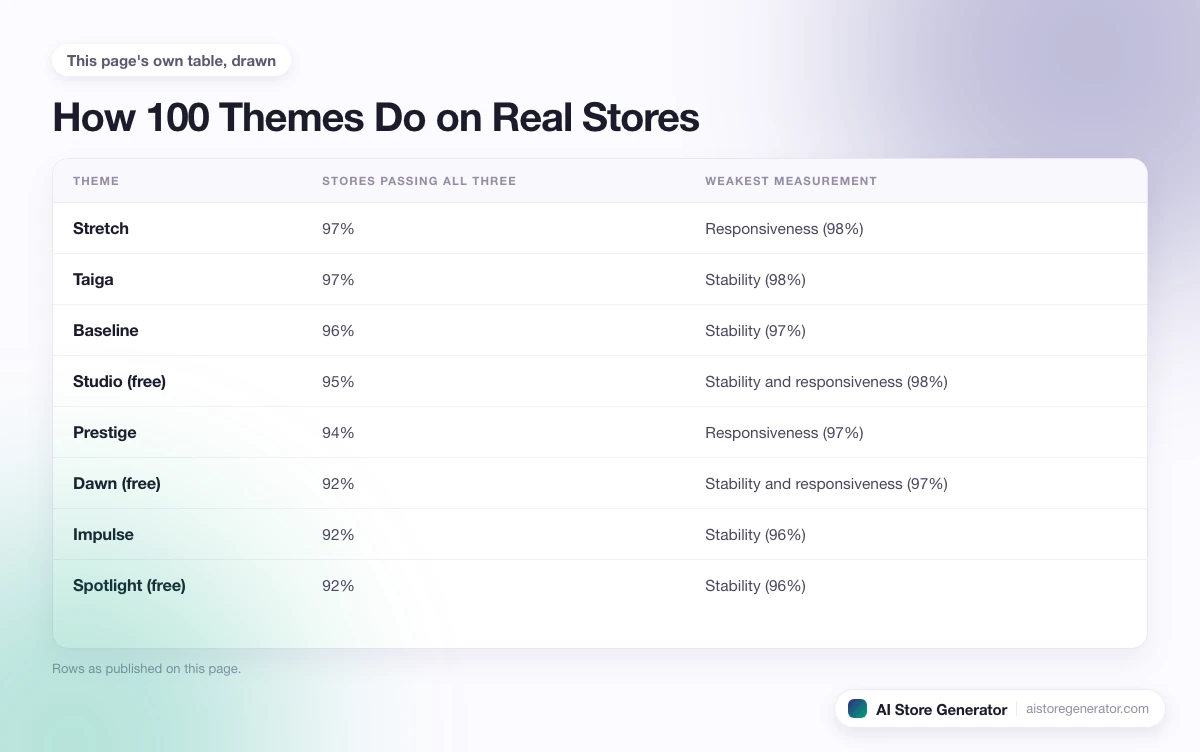
Shopify’s performance team publishes a table of popular themes with one number per theme: the share of stores using it where at least 75% of shopper visits had good loading, responsiveness and stability. The version we read was updated on 3 November 2026. It only counts stores with at least 100 views a day, on a custom domain, running one of the three newest versions of the theme.
| Theme | Stores passing all three | Weakest measurement |
|---|---|---|
| Stretch | 97% | Responsiveness (98%) |
| Taiga | 97% | Stability (98%) |
| Baseline | 96% | Stability (97%) |
| Studio (free) | 95% | Stability and responsiveness (98%) |
| Prestige | 94% | Responsiveness (97%) |
| Dawn (free) | 92% | Stability and responsiveness (97%) |
| Impulse | 92% | Stability (96%) |
| Spotlight (free) | 92% | Stability (96%) |
| Horizon (free) | 90% | Responsiveness (94%) |
| Xclusive | 59% | Responsiveness (65%) |
| Fashionopolism | 51% | Stability (53%) |
| Vantage | 49% | Loading (55%) |
| Testament | 44% | Stability (47%) |
| Icon | 27% | Stability (32%) |
Three things stand out. First, most themes are fine: the median theme passes on about 91% of stores, and 9 of the 100 pass on 95% or more. Second, Shopify’s own free themes are solid but not the top of the table. The 19 that appear range from 89% to 95%, with a median of 92%. Third, the bottom of the table is not where you would expect.
Layout shift sinks more themes than slow loading
When people say a theme is slow, they picture a page that takes ages to appear. The data says otherwise. Of the 14 themes that pass on fewer than 80% of stores, 8 fail mainly on stability, the page jumping as it loads. Only 4 fail mainly on loading. Across all 100 themes, stability is the weakest of the three measurements for 47 of them.
A jumpy page feels slow to a shopper because the button they reached for moves. Sliders without a fixed height, announcement bars that appear late, review stars that push the price down, and pop-ups that slide in all cause it. Some of that is the theme. A lot of it is apps placed inside the theme.
Light Code Sets a Floor, Not a Ranking
On 6 November we weighed the code that 69 themes from the Theme Store make every shopper download, for our guide to the fastest Shopify theme by code weight. 51 of those themes also appear in Shopify’s real-store table, so we put the two side by side. Here is what we found:
- Under 75 KB of theme code (14 themes): none passed on fewer than 90% of stores.
- Between 75 and 150 KB (23 themes): 5 fell below 90%.
- Over 150 KB (14 themes): 10 fell below 90%.
So light code protects you from the worst outcomes. It does not make a theme the best. Spotlight, the lightest theme we measured, sits at 92% on real stores. Stretch ships about three times as much code and tops the whole table at 97%. Pipeline, one of the heaviest themes we weighed, still passes on 91% of stores. How a theme loads its code, and how well it holds its layout steady, matters as much as how much code there is.
Is Your Theme the Problem? A 20-Minute Test
Here is the fact that makes this test possible. The switches under App embeds in the theme editor are saved inside each theme, not across your whole store. Shopify only writes an app embed into a theme once it has been turned on there. A theme you have just added therefore starts with every app embed off, and so does any copy where you switch them off.
- Read your real numbers first. On the Themes page, note your loading, responsiveness and stability results for the last 30 days. If all three are good, your theme is not your problem, whatever a lab score says.
- Find the weak page type. In Analytics, open the web performance reports grouped by page type. If only product pages are poor, look at the product template’s sections and apps. If every page type is poor, look at code that loads everywhere.
- Check the timeline. The over-time reports mark app installs and theme updates as numbered lines. A drop right after one of them is usually your answer.
- Make a clean copy. On the Themes page, duplicate your live theme. In the copy, open the theme editor, go to App embeds and switch every one off. Leave your live theme alone.
- Compare the two. Open both in an incognito window, the live store and the copy’s preview link, and run Lighthouse from Chrome’s developer tools three times on each. Compare the middle result, not the best one.
If the clean copy is much faster, your apps are the problem, not the theme. If both are slow, the theme or its settings are. Two limits keep this honest. Some older apps write code straight into theme files, and a duplicate copies that code too, so a fresh copy of the theme from the Theme Store gives a cleaner baseline. And some apps load their scripts in a way that is not tied to any theme, so they will appear on both copies. Shopify’s help pages also warn that uninstalling an app does not always remove its code from your theme.
We build Shopify stores for a living. When one of ours starts to feel slow months after launch, the theme has rarely changed. What has changed is the App embeds list, which tends to grow one switch at a time and almost never shrinks.
What to Do With the Answer
If your apps are the problem
Turn off app embeds you do not use, then uninstall the apps behind them and ask each developer how to remove leftover code. Watch especially for anything that slides in, pops up or adds a bar to the top of the page, because those are the usual causes of a jumpy page.
If your theme is the problem
Start with the cheap fixes. Update to the latest version of your theme, since Shopify’s table only counts the three newest versions and older ones are often slower. Remove sections you do not need from the home page, switch off page transitions and animations, and turn on pagination for big collections. Shopify’s own help pages name all of these.
If that is not enough, switching themes is a real option. Shopify allows up to 20 themes on most plans, so you can add a candidate, preview it with your own products and test it the same way before you commit. Our list of the best free Shopify themes is a good place to start, and our guide to the Shopify Theme Store explains what a listing does and does not promise.
If you are looking at someone else’s fast store
Our Shopify theme detector tells you which theme any Shopify store runs. Look that theme up in Shopify’s table before you assume the theme is why it feels quick. Often it is the owner’s restraint with apps, not the theme.
Starting Fast
If you are building a new store, speed is easiest to keep when you never lose it. AI Store Generator builds a complete Shopify store on a light theme, with products and pages already in place. From there, treat every app you add as a cost that has to earn its place, and check your web performance report after each one.
Frequently Asked Questions
How do I check my Shopify theme speed?
Open the Themes page in your Shopify admin and read the web performance summary. It shows loading, responsiveness and stability from real visitors over the last 30 days. For more detail, open the web performance reports under Analytics.
Which Shopify theme is fastest on real stores?
In Shopify’s table updated on 3 November 2026, Stretch passed on 97% of stores, followed by Taiga, Baseline, Bullet and Local. Studio was the best of Shopify’s free themes at 95%.
Is Dawn still a fast theme?
Yes. Dawn passed on 92% of stores in Shopify’s table, slightly above the median theme. Several other free themes did as well or better, including Studio, Ride and Craft.
Why does my store score badly in PageSpeed Insights but well in Shopify?
The big score at the top of PageSpeed Insights comes from one simulated test on a slowed-down phone. Shopify’s report uses your real visitors. Your real visitors are what count, so trust the Shopify report when the two disagree.
Does changing themes make a Shopify store faster?
Only if the theme is the cause. Test a clean copy of your current theme with app embeds switched off first. If that copy is fast, a new theme will not fix the problem, because your apps will follow you.
Why is my Shopify store not showing speed data?
Shopify only reports real-visitor data once your store is open to the public. If it is still password protected, or very new, the reports stay empty.